Why Is My Printer "Offline"? 3 Simple Fixes
Posted on February 5, 2026 | By Naresh Chowdary
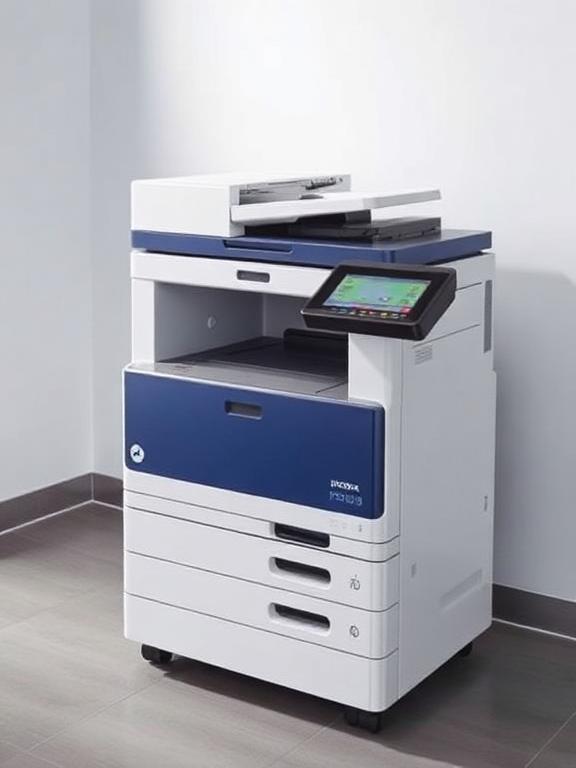
It's the most annoying message: You hit "Print," and nothing happens. Windows says your printer is Offline. Before you panic, try these fixes.
1. The "Restart" Rule
It sounds silly, but rebooting both your router (WiFi) and your printer solves 50% of these issues. IP address conflicts often cause the offline status.
2. Clear the Print Spooler
Sometimes a stuck print job from last week blocks new ones.
1. Press Windows + R type services.msc.
2. Find Print Spooler. Right-click and select Restart.
3. Uncheck "Use Printer Offline"
Go to Settings > Devices > Printers & Scanners. Click your printer > Open Queue > Printer Menu. Ensure "Use Printer Offline" is NOT checked.
Still Offline?
It might be a driver or hardware failure. We can fix it remotely or at your doorstep.
Call for Support